Go deeper
The lead reply and follow-ups from these lessons, as importable n8n workflows that prepare drafts for you to send.
Workflow pack
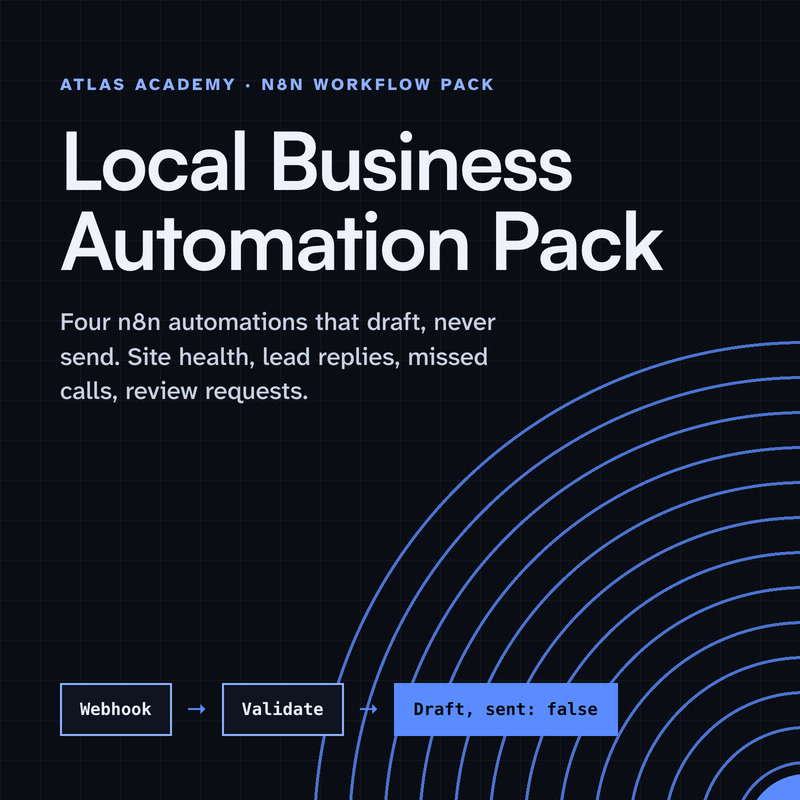
Four n8n automations for a local business that prepare drafts for you to check and send yourself: a site health check, a lead-form reply, a missed-call text-back and a review request, with a guide that explains every node.
- Level
- Some setup: Docker
- Format
- PDF, Files (zip)
- You need
- A computer that can run Docker, about an hour, no programming
Next lesson
Invoice and Payment Link Follow-Ups with n8n (Polite, Automatic)
All lessons in AI Automation for Small Business
Lesson script
The lesson's script, line by line. The published video's own lines are not on record here, so the video may differ in places.
Why reminders? Because people forget, even your best customers. Life is busy, and a booking made two weeks ago is easy to lose track of.
A short reminder the day before is a kind nudge. It also gives people a chance to tell you early if they can't make it.
And it's the same message every time, with only the name and the time changing. That makes it perfect for automation.
Create a workflow and add a Schedule Trigger.
Set it to run every day, at six in the evening. That's late enough to catch last-minute bookings, and early enough to be polite. Nobody wants a reminder at midnight.
Then set the workflow's time zone to yours. Otherwise n8n uses the instance's time zone, and six might not mean your six.
Next, add a Google Calendar node. Choose Event, and the Get Many operation, which gets the events from a calendar.
Limit it to tomorrow's events only. Set After to the start of tomorrow, and Before to the end of tomorrow, so nobody gets a reminder for next month.
Each booking comes out as its own item, and the next nodes run once for every item. That's how one template becomes many messages.
Quick quiz. Why does it matter that each booking is its own item? Comment.
B. The next nodes run once per item, so each booking gets its own message.
Now the message. Add a Gmail node, with Message and Send, and connect your Google login once, in credentials.
Write one template, and drop in the customer's name and the time with expressions. Where those details live depends on how you write your bookings, so check one event's data first.
Keep it short and warm, and tell people how to change the time if they need to, like: just reply to this email. Read it out loud once. If it sounds like a robot, rewrite it.
If this saves you a few empty slots, subscribe. Next in this series: polite invoice follow-ups.
Last step. Add a Google Sheets node, Append Row, after the email.
Write who you reminded, which booking it was, and when it was sent. If a customer says they never got it, you can check in seconds. And at the end of the month, you can see how many reminders went out.
Pause the video and try it. Add a test booking for tomorrow with your own email,
then run the workflow once by hand. Resume when the reminder arrives.
What about cancellations? Keep your calendar as the single source of truth. Cancel the booking there, and that's it.
Because the workflow reads the calendar fresh each evening, a booking that's gone simply gets no reminder.
But a change after the reminder has gone out needs a person. Send that message yourself. It's kinder, and it's clearer.
Last quiz. A booking is cancelled at noon. What happens that evening? Comment.
B. No reminder. The evening run reads the calendar fresh.
Recap. A Schedule Trigger runs every evening, in your time zone.
Google Calendar gets tomorrow's bookings only.
Gmail sends one warm template to each booking.
And Google Sheets keeps a log. Fewer forgotten appointments, with no extra work. Run it by hand for a week and read every message before you let it run alone. Next time: polite, automatic follow-ups for invoices and payment links.