Go deeper
The lead reply and follow-ups from these lessons, as importable n8n workflows that prepare drafts for you to send.
Workflow pack
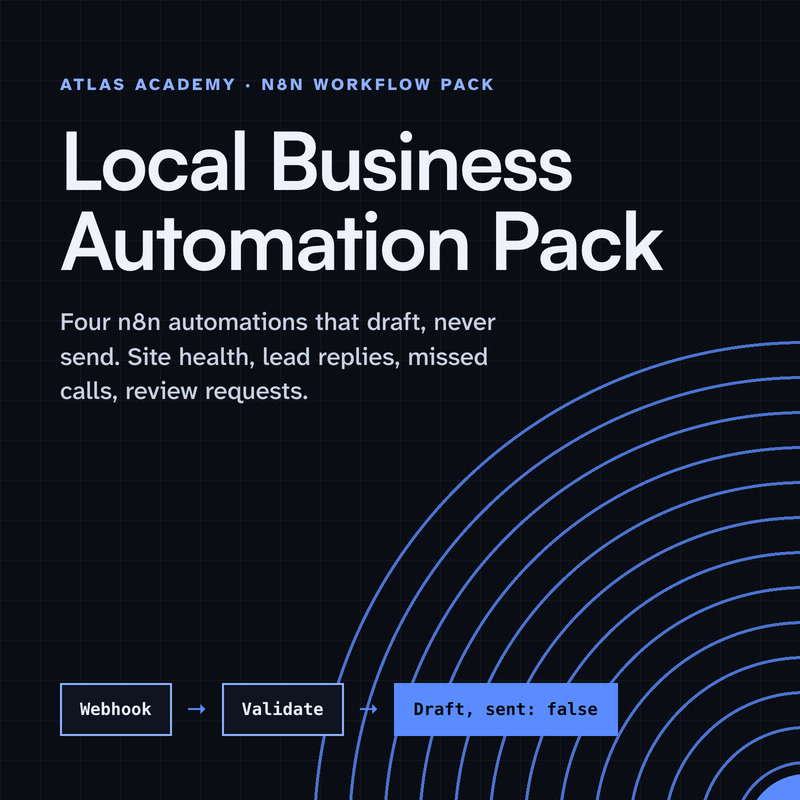
Four n8n automations for a local business that prepare drafts for you to check and send yourself: a site health check, a lead-form reply, a missed-call text-back and a review request, with a guide that explains every node.
- Level
- Some setup: Docker
- Format
- PDF, Files (zip)
- You need
- A computer that can run Docker, about an hour, no programming
Next lesson
Weekly Report to Slack from Google Sheets with n8n
All lessons in AI Automation for Small Business
Lesson script
The lesson's script, line by line. The published video's own lines are not on record here, so the video may differ in places.
Start with a Google Sheet. One row for every invoice you send, and you're probably keeping a list like this already.
Give it columns for the customer's name, their email, the invoice number, and the payment link you already have.
Then three more: the due date, the date it was paid, and the date of the last reminder. The last two start empty.
Now, in n8n, add a Schedule Trigger, and choose Weeks as the interval.
Pick Monday as the weekday, and ten as the hour. Once a week means nobody ever gets more than one reminder a week from you.
And set the workflow's time zone, so ten means your ten, not the server's.
Add a Google Sheets node, with Get Rows. It reads every row of your sheet, one item per invoice.
Then add a Filter node. The first condition: the paid on column is empty. Rows that don't match are simply dropped.
The second: the due date is before today. Today, in n8n, is the dollar today expression. Both conditions must be true.
Quick quiz. A customer pays on Tuesday, and you fill in their paid on date. Do they get Monday's email? Comment your answer.
B. No email. Their row isn't empty any more, so the Filter drops it.
Add a Gmail node, Message, Send, and connect your Google login once. The To field is the email column from the row.
Write one short template. Drag in the name, the invoice number and the payment link from the row, and say thank you if they've already paid.
One detail: by default, Gmail in n8n adds a line saying it was sent with n8n. Turn that option off, and it reads like you.
If this takes one awkward job off your plate, subscribe.
Last step. Add one more Google Sheets node, with Update Row.
Choose the invoice number as the column to match on, so the right row is updated.
And write today's date into last reminded. That's the whole workflow. Now you can see, at a glance, who was reminded and when, and answer any customer who asks.
Pause the video and add a test row, with your own email address,
a due date of yesterday, and paid on left empty. Run the workflow once by hand, and resume when the email arrives.
A few habits keep this kind. The sheet is the one place that decides who gets an email, so keep it up to date.
Fill in the paid on date as soon as a payment arrives, and the reminders stop by themselves.
And if someone replies with a question or a problem, a person answers. The workflow only sends the nudge.
Last quiz. Why does the schedule run only on Mondays? Comment.
B. So nobody gets more than one reminder a week.
Recap. A Google Sheet holds every invoice and its payment link.
A Schedule Trigger runs once a week, on Monday, in your time zone.
A Filter keeps only invoices that are unpaid and overdue.
Gmail sends one polite email, and Sheets logs the date. Read the first few emails yourself before you let it run alone. Next time: a weekly report sent to Slack from Google Sheets.