Go deeper
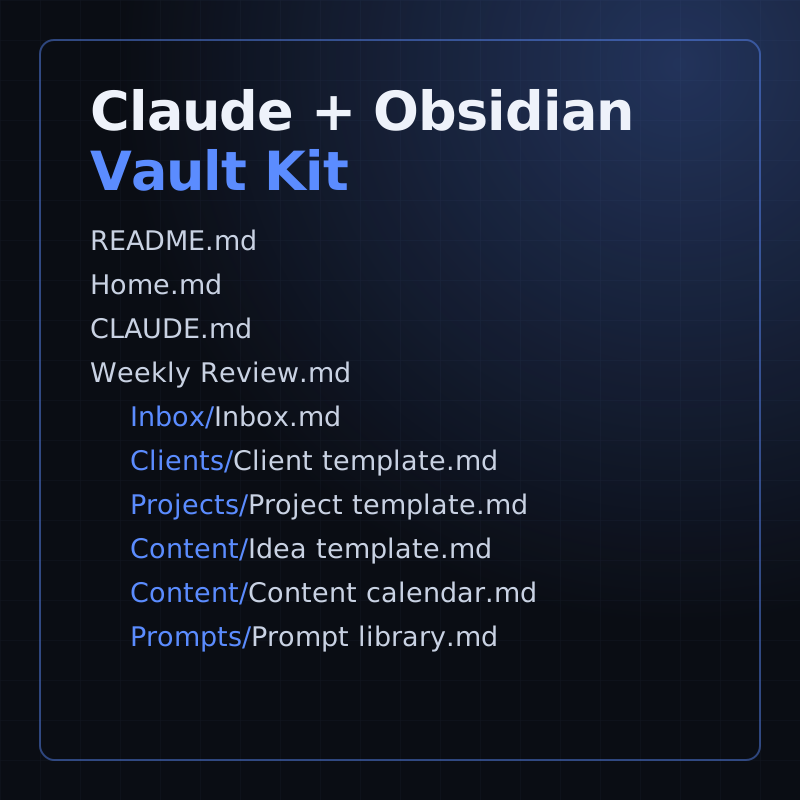
Put Claude to work on your own business notes: a starter vault with templates, a weekly review and prompts.
Kit
A starter Obsidian vault for running a small business with Claude: templates, a weekly review and 16 prompts.
- Level
- Beginner, no code
- Format
- Files (zip)
- You need
- Obsidian, and your own Claude access
Next lesson
Claude MCP Tutorial 2026: How MCP Actually Works + Your First MCP Server
All lessons in Claude Mastery: MCP, Skills & Connectors
Lesson script
The lesson's script, line by line. The published video's own lines are not on record here, so the video may differ in places.
Claude is an AI assistant made by a company called Anthropic. Think of it as a very fast helper you can talk to.
You don't need special commands. No secret codes, no magic words. You type, or paste, what you want in normal words, the way you'd ask a person.
It can write a first draft, explain something hard in simple terms, summarize a long document, or help you think through a plan.
Quick quiz. How do you talk to Claude? Comment your answer before the timer ends.
It's B, plain words. Ask the way you'd ask a person.
Open your browser and go to claude.ai, then sign in. There are also desktop and phone apps, and they work the same way.
Type your request in the chat box at the bottom and press enter. That's a chat.
Read the answer. If it's not quite right, just reply: make it shorter, or more friendly. Claude remembers what you said earlier in the same chat.
Good answers come from good questions. Ever typed one vague line and got a vague answer back? Here's the fix. First, give context: who it's for and what you already have.
Second, say the goal: what you want back at the end.
Third, the format: a short list, an email, a table, or three options to choose from. Those three parts make a huge difference.
Pause the video and try it now. Open claude.ai and start a chat,
then ask for something real, with context, a goal and a format. Resume when you have your answer.
You can also give Claude a file. Click the plus button in the lower left of the chat box and pick your file.
Or just drag the file from your computer into the chat window. Yep, that's it.
It works with PDFs, Word documents, CSV and text files, and images. Then ask: summarize this, or what are the three main points?
If this is helping, hit subscribe. This whole channel goes from zero to advanced, one small step at a time.
Working on the same thing again and again? Use a Project. It's a workspace with its own chats, all in one place.
You add your files to the project's knowledge once, and every chat in that project can use them.
And you can write project instructions, like: always answer in simple words, or write like our company does. Claude follows them in every chat there.
Last quiz. You want Claude to follow the same instructions every time. Where do you put them? Comment your answer.
B, project instructions. Write them once, and every chat there uses them.
You'll hear about Claude Code a lot on this channel. It's Claude for building software and automations.
Anthropic's docs call it an agentic coding tool: it reads your code, edits files and runs commands, with you watching and approving.
It runs in the terminal, in code editors, in the desktop app, and in the browser. We'll set it up properly in a later episode, step by step.
Recap. Claude is an AI assistant, and you talk to it in plain words.
Ask with context, a goal and a format, then follow up.
Add files with the plus button, or drag them in.
And use Projects for work you repeat. Next time: what MCP is, and how to connect your first MCP server to Claude.