Go deeper
Put Claude to work on your own business notes: a starter vault with templates, a weekly review and prompts.
Kit
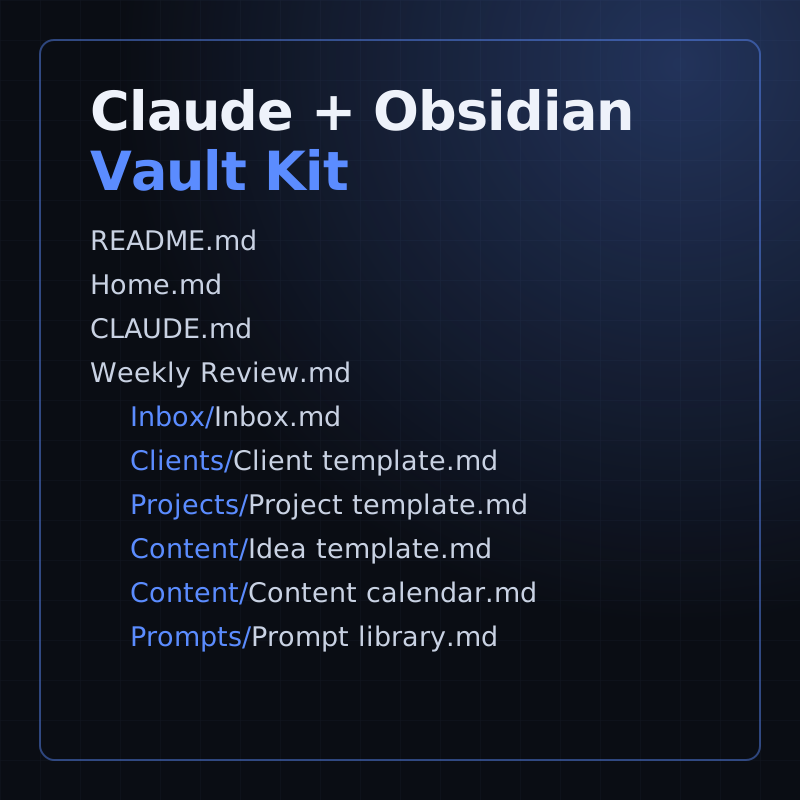
A starter Obsidian vault for running a small business with Claude: templates, a weekly review and 16 prompts.
- Level
- Beginner, no code
- Format
- Files (zip)
- You need
- Obsidian, and your own Claude access
Next lesson
Claude Skills Explained: Create Your First SKILL.md (Claude Code Tutorial)
All lessons in Claude Mastery: MCP, Skills & Connectors
Lesson script
The lesson's script, line by line. The published video's own lines are not on record here, so the video may differ in places.
When you add a server to Claude Code, you choose a scope. That's where it's saved, and who can use it. Local is the default: it loads only in this project, and only for you.
Project scope saves the server in a file called.mcp.json at the root of your project. You commit it, and your whole team gets it. Claude Code asks for your approval before using a server from that file.
And user scope makes a server available in every project on your computer. Good for tools you use everywhere.
Here's the command. For a remote server, use transport http, then a name, then the address. This one is saved in local scope.
Add dash dash scope project, and it goes into.mcp.json for the whole team instead.
A local server runs as a program on your computer, over stdio. Everything after the double dash is the command that starts it. Here, that's the Time reference server.
Quick quiz. Which scope shares a server with your team? Comment your answer.
It's B, project. It lives in.mcp.json, in version control.
Which servers to start with? The MCP project keeps a small set of reference servers. They're simple, well documented, and great for learning. Time converts dates and time zones.
Fetch reads a web page and turns it into text the model can use.
Filesystem works with files, but only in the folders you allow. Give it the smallest folder that does the job.
And Git reads and searches your repositories. Add one, try it, and only then add the next. Five at once is how a whole afternoon disappears.
If this is helping, subscribe. Next in this series, we write our first Claude skill.
Now check it. In your terminal, claude mcp list shows every server you added, with its status.
Inside a Claude Code session, type slash mcp. You see the same status, and for a remote server that needs a login, this is where you sign in.
There are three answers to look for: Connected, Needs authentication, or Failed to connect. Only the first one means you're ready.
Pause the video and try it. Add the Time server with the command above,
then run claude mcp list and look for Connected. Resume when you see it.
Says failed? Don't panic. Check four things. First, the command. Is it spelled right, and is the program actually installed? Run it on its own to see.
Second, in.mcp.json, a remote server needs type, http. The docs warn that an entry with a url but no type is read as a local server.
Third, if it says needs authentication, open slash mcp and sign in. Adding a server doesn't check your token; slash mcp does.
And fourth, a slow server can time out while starting. The docs show the MCP underscore TIMEOUT setting to give it longer.
Last quiz. A server says needs authentication. What do you do? Comment.
B. Open slash mcp and sign in.
Recap. A server has a scope: local, project or user.
Add it with claude mcp add, then check it with claude mcp list.
Start with a simple reference server, one at a time.
And if it fails, check the command, the type, the sign-in and the timeout. Next time: Claude skills, and how to write your very first one.