Practice check
Lab: run history
Free lab file, no sign-up:
- Do
- Import n8n-run-history.json · run it twice
- Expect
- Your screen should show: Executions tab: two runs, both Success
- Stuck?
- No runs listed? Settings → Save manual executions
- Challenge
- Change it to Version 2, then restore Version 1
Go deeper
The same n8n editor, with ready automations for a local business and a guide that explains every node.
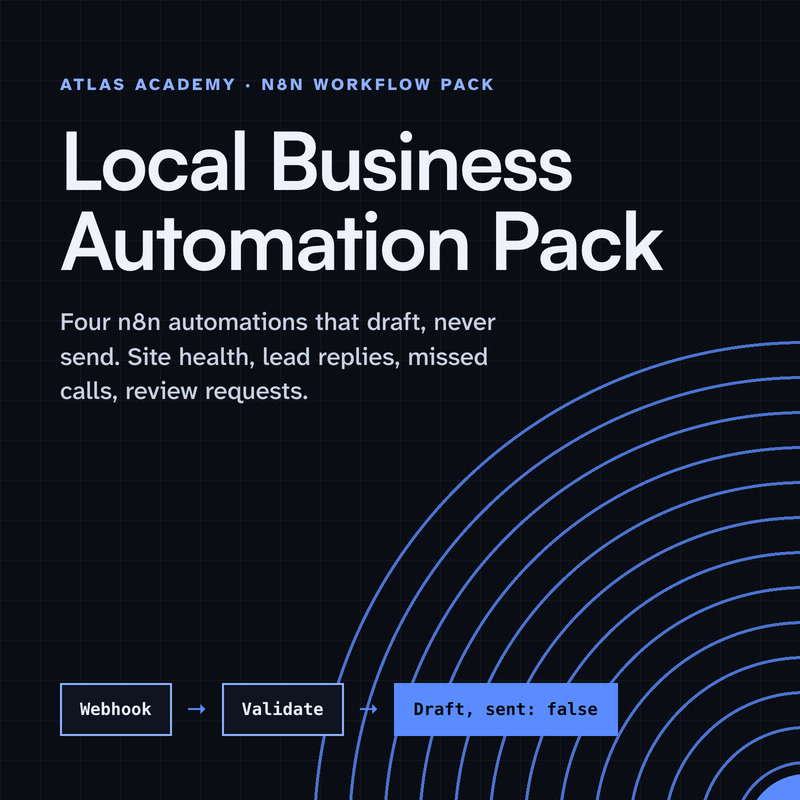
Workflow pack
Four n8n automations for a local business that prepare drafts for you to check and send yourself: a site health check, a lead-form reply, a missed-call text-back and a review request, with a guide that explains every node.
- Level
- Some setup: Docker
- Format
- PDF, Files (zip)
- You need
- A computer that can run Docker, about an hour, no programming
Next lesson
n8n Error Handling Tutorial: Error Trigger, Retry and Continue on Fail
All lessons in n8n Workflows from Zero
Lesson script
The lesson's script, line by line. The published video's own lines are not on record here, so the video may differ in places.
Let's start where you'll spend the most time. Open any workflow, and at the top, click the Executions tab.
Every row is one execution: one run of the workflow, whether it worked, and when it started.
Lots of runs? Click Filters, and show only the failed ones, or one time window.
A manual run is one you start, by clicking Execute workflow while you build.
A production run starts by itself. The workflow is published, and its trigger fires: a schedule, a webhook, or an app.
Why care? On paid plans, production runs count towards your limit. Test clicks don't.
Quick quiz. You click Execute workflow. Is that run manual or production? Comment your answer.
It's A, manual. You started it yourself.
Sooner or later, a run fails. Open it, see which node went red, and fix that node.
Back in the Executions list, click the Refresh icon on the failed run.
Pick Retry with currently saved workflow. That runs your fixed version on the same data that failed. Retry with original workflow runs it again with no changes.
Or click Debug in editor: n8n pins that run's data to the first node, so you can test the fix. Self-hosted, that needs a registered Community edition or higher.
If this is saving you a headache, subscribe.
Now, saving. There's no save button. n8n saves your edits by itself, usually within a few seconds.
But saved isn't live. Your edits stay a draft until you publish. A published workflow keeps running the last version you published.
When you're ready, click Publish, or press Shift and P. If the button says published, has changes, your newest edits aren't live yet.
And to stop a workflow from running by itself, open the arrow next to Publish and choose Unpublish.
Pause the video and try it. Open one of your workflows and find the Publish button,
then open the little arrow next to it and read the options. Resume when you've had a look.
Here's a common mix-up. Executions are runs, not older versions of the workflow.
Those live in workflow history. Click the history icon at the top, and you'll see your saved versions, with a preview of each one.
Changed something and broke it? Open the version's menu and choose Restore version. Undo, for a whole workflow. The last 24 hours are there on every plan; longer depends on your plan.
Last one: tidiness. With ten workflows, finding the right one gets slow. Give each a clear name, and a tag.
Click Add tag next to the name, and pick or type one, like reports. Then filter by it on the Workflows page.
One thing to know: tags are shared across the whole instance. So pick names everyone will understand.
Last quiz. You want yesterday's version of a workflow back. Where do you go? Comment.
B, workflow history. Executions are runs, not versions.
Your lab. Download the lab file from the description, import it, and click Execute workflow twice.
Open the Executions tab. Expect two runs, both marked as a success.
Stuck? If no runs are listed, open the workflow menu, then Settings, and switch Save manual executions on.
Your challenge: change the text to version two, then use workflow history to bring back version one.
Recap. The Executions tab lists every run, and filters find the failed ones.
After a fix, retry the failed run, or debug it in the editor.
Edits save by themselves, but only Publish makes them live.
And workflow history brings back an earlier version, while tags help you find your workflows. Next time: handling errors in n8n, so one failed step doesn't stop everything.